
How to organise thousands of photos on a Mac
To organise thousands of photos, use a library. Add the folders where your photos are to Lucarne, and they stay right there; nothing is copied or moved. Rate and tag them, find any of them by camera, lens, or rating, and edit the ones you want. Lucarne is a free photo editor for the Mac, and a full library too.
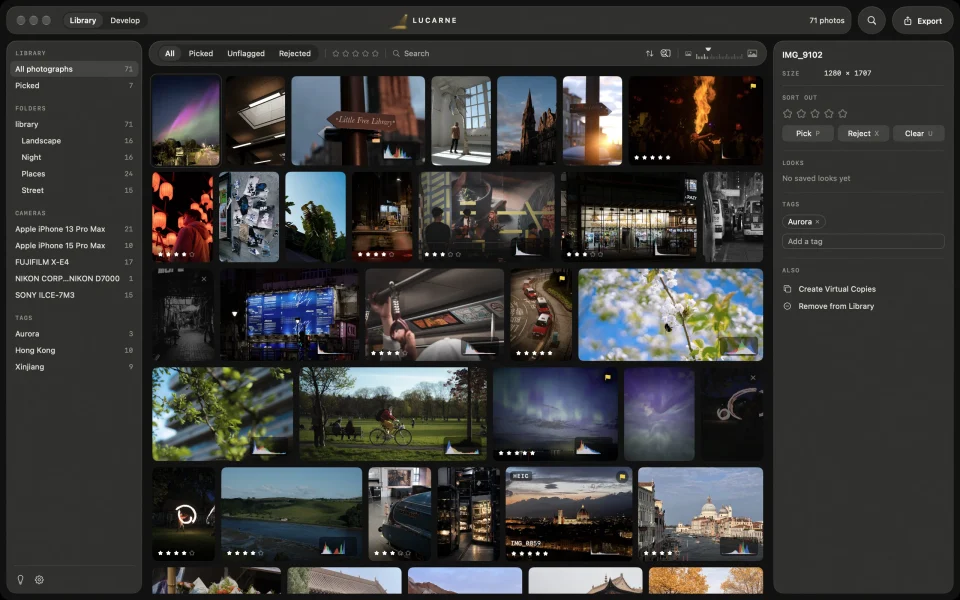
Your folders stay as they are
When you add a folder to the library, Lucarne doesn’t copy, move, or rename your photos; they stay where they are. Put new photos in those folders later, and they appear in the library on their own. If you shoot RAW+JPEG, each pair shows as one photo.
Sort them out
Start with a quick pass:
- Stars: one to five, for how good a photo is
- Flags: pick the keepers, reject the rest
- Tags: places, people, subjects — however you like
It’s quicker with the keyboard: 1 to 5 for stars, P to pick, X to reject.
Find anything
- Filter: show only picked photos, or those with at least some stars; by folder, camera, or tag
- Search: file names, cameras, lenses, tags
- Sort: by capture time, import time, file name, or edit time
Even across years of photos, you can find any one in seconds.
See every photo whole
Many libraries crop thumbnails into squares. Lucarne shows every photo in full at its own proportions, landscape, portrait, or panorama, in neat rows. Drag the slider to go from a wall of small pictures to a few large ones.
Organise and edit in one app
Double-click a photo to edit it. Edit one, then apply the look to others. Export your picks in one go. No moving files between apps.
Questions
- Does Lucarne move or copy my photos?
- No. Your photos stay in their folders; Lucarne adds them to its library.
- Can I use it just to organise photos?
- Yes. The library is complete on its own and works well just for keeping photos in order.
- Is Lucarne free?
- Yes. The library, editing, and export are all free to use.