
How to edit many photos at once
To edit many photos at once, edit one, then copy its settings to the others. Lucarne, a free photo editor for the Mac, does it three ways: save a Look, copy and paste settings, or sync. When you apply a Look, Lucarne redoes the AI selections in each photo, so it finds the sky or the subject in every one.
Three ways
Looks
Save an edit as a Look and apply it to as many photos as you like. You can undo the whole batch in one step. Best for the looks you use often and scenes you shoot again and again.
Copy and paste
Copy the settings of an edited photo and paste them onto others. Best for passing one photo’s edit to a few more.
Sync
Select a set of photos and sync them to the settings of one. Best for a shoot in consistent light.
Selections that follow each photo
Many edits only touch part of the picture: darken the sky, brighten the people. When you apply a Look, Lucarne finds the sky, the subject, or the people again in each photo. The sky is in a different place in every frame, so each photo gets its own sky selection.
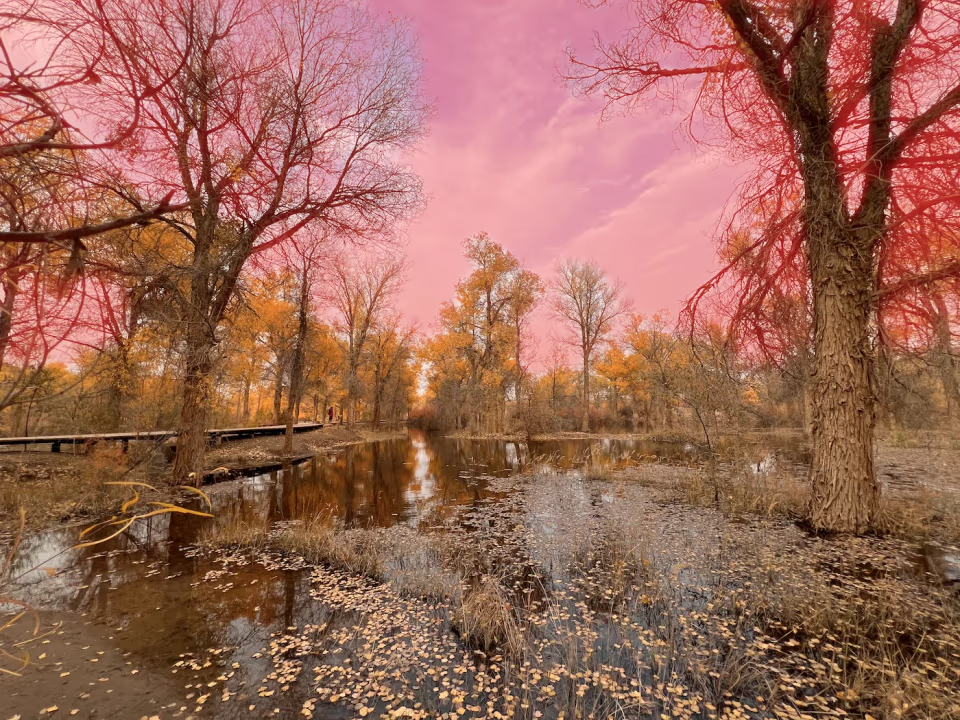 Photo one: its sky found
 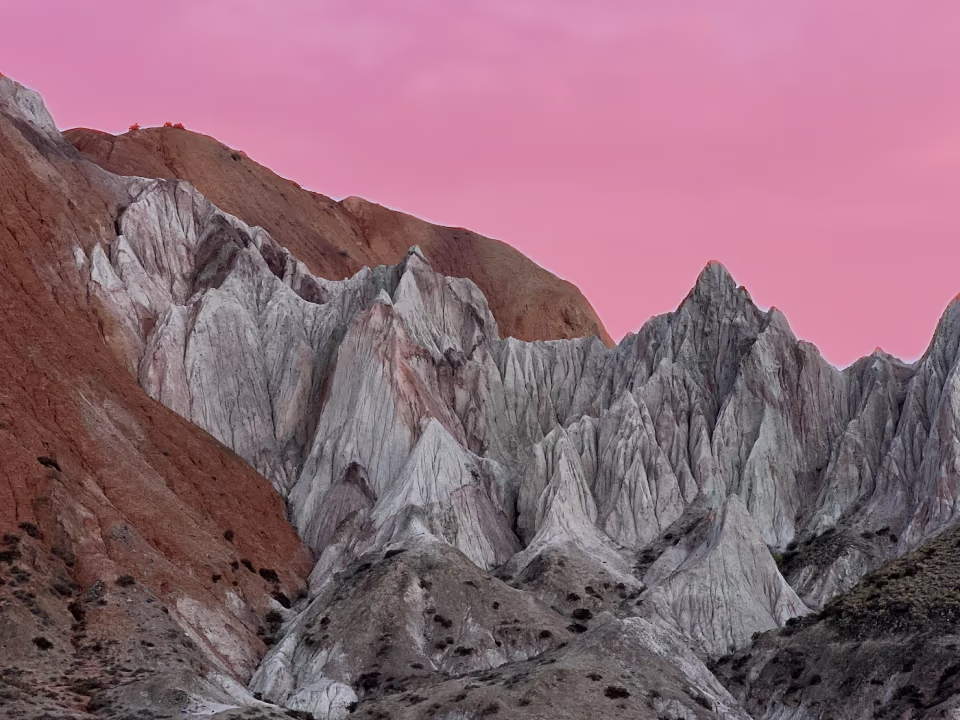 Photo two: its sky found
 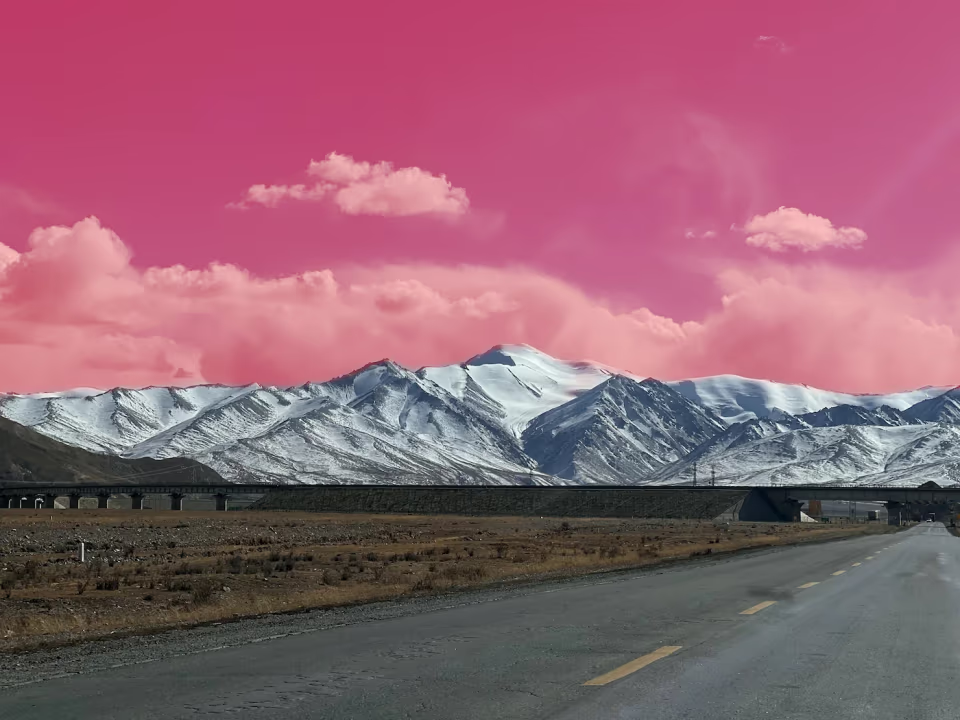 Photo three: its sky found
 Fine-tune each one
No two photos in a set are identical. After a batch, adjust any of them on its own; each photo has its own history.
Export them together
Select the set and export it with one export preset: the same size, format, frame, and watermark.
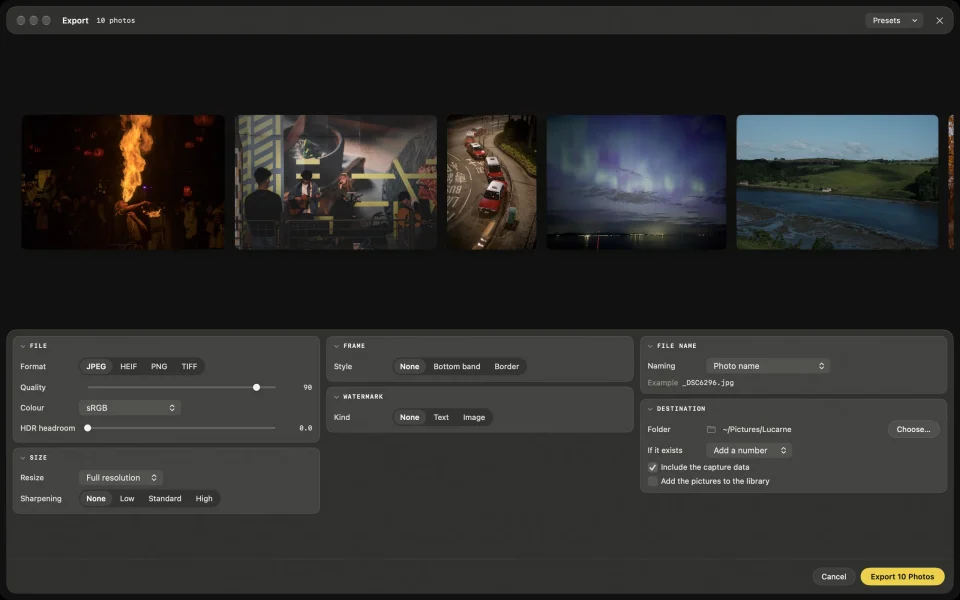
Ask an AI assistant
With an AI assistant connected, one sentence does it: “Make all of yesterday’s picks look like this one.” See Let your AI assistant edit your photos.
Questions
- Is batch editing free?
- Yes. Looks, copy and paste, sync, and batch export are all free to use.
- Can I undo a batch?
- Yes. A Look applied to a batch of photos can be undone in one step.
- Does the crop carry over?
- Looks leave out crop, rotation, and perspective. They differ from photo to photo, so you set them on each one.