
Remove anything from a photo with AI, on your Mac
To remove something from a photo, brush over it. In Lucarne, a free photo editor for the Mac, AI removal takes out what you click or paint and fills in the background behind it. It runs on your Mac, and it’s free.
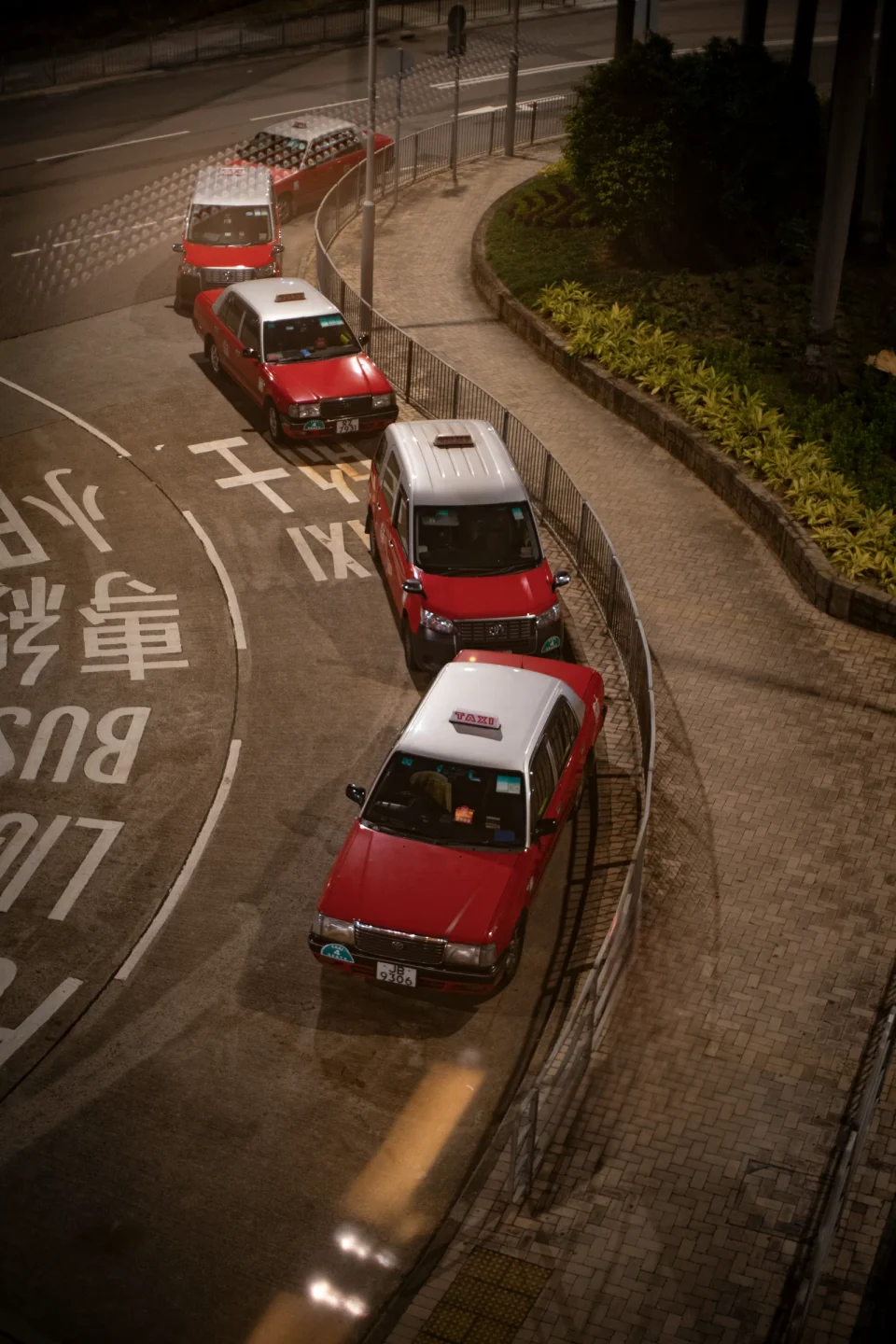
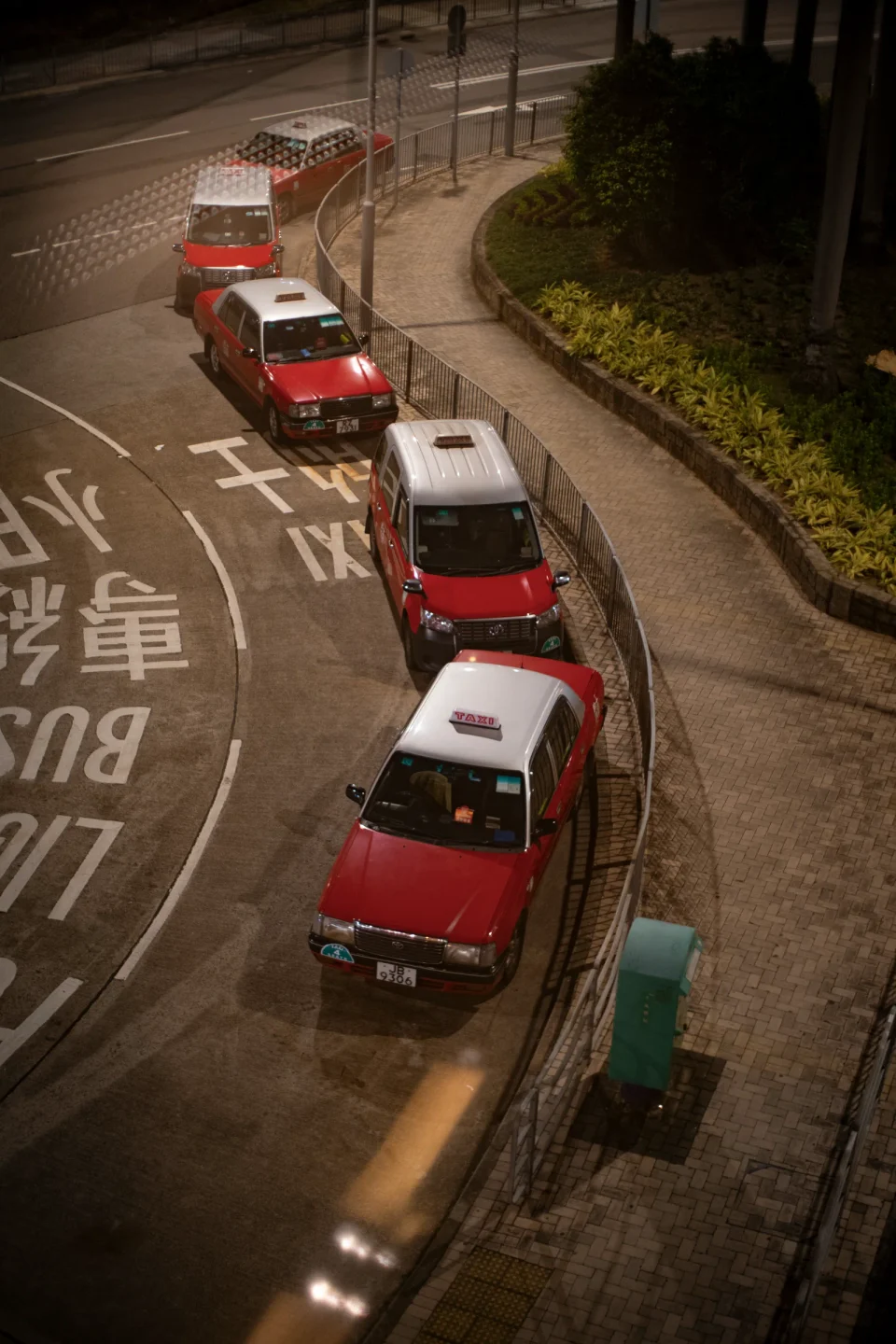
How to use it
- In develop, choose the Heal and remove tool and switch to Remove.
- Click a small spot, or paint over what you want gone.
- AI removes it and fills in the background. Adjust or delete the removal any time.
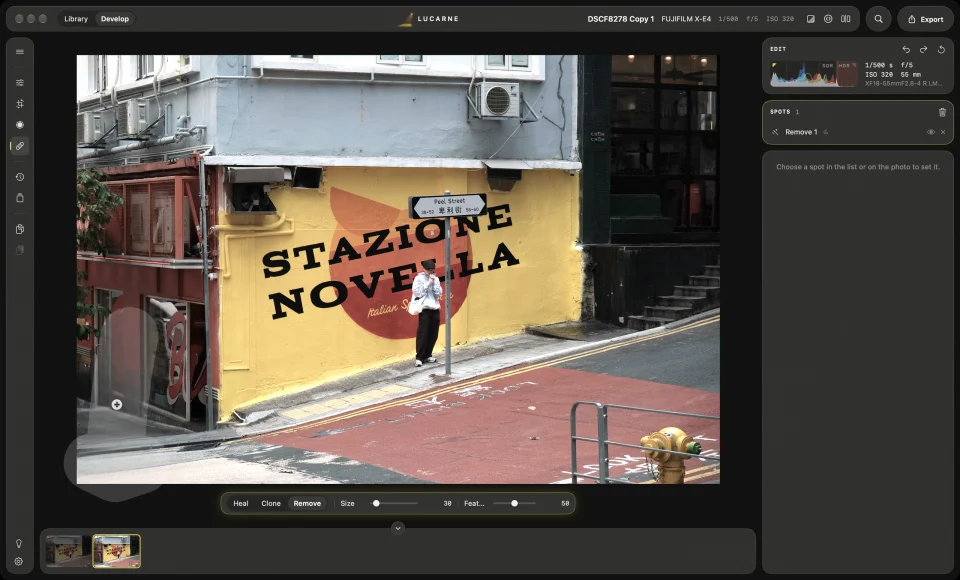
The tool works three ways. Remove lets AI fill in the background; use it for whole objects. Heal takes texture from a source and blends it into the tone and colour around the spot; use it for dust and blemishes. Clone copies another area exactly, for when you want full control.
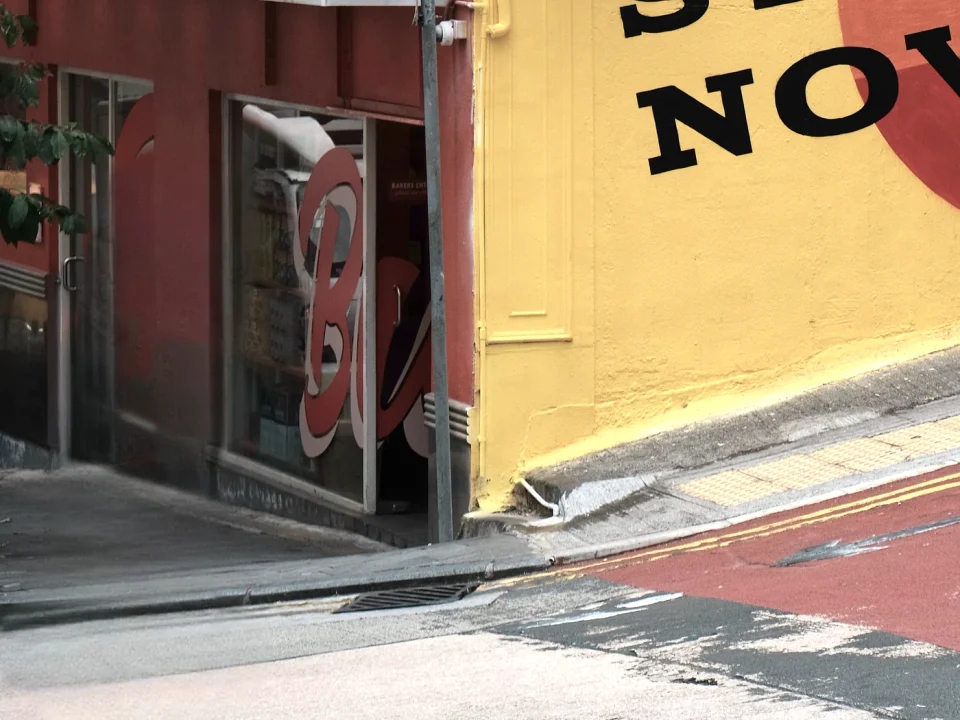
What it can remove
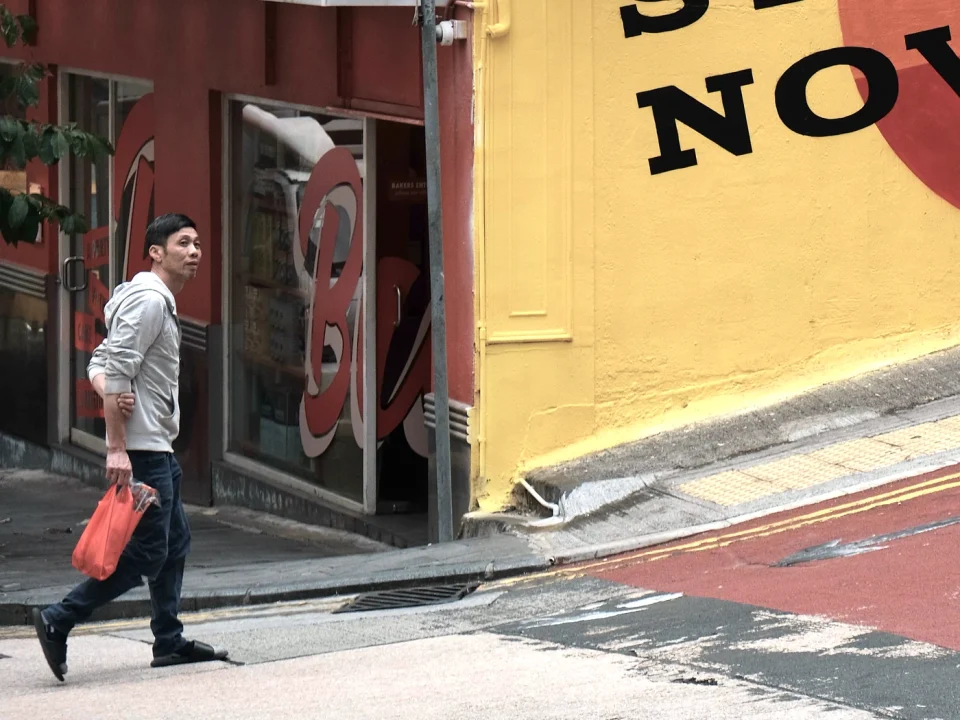
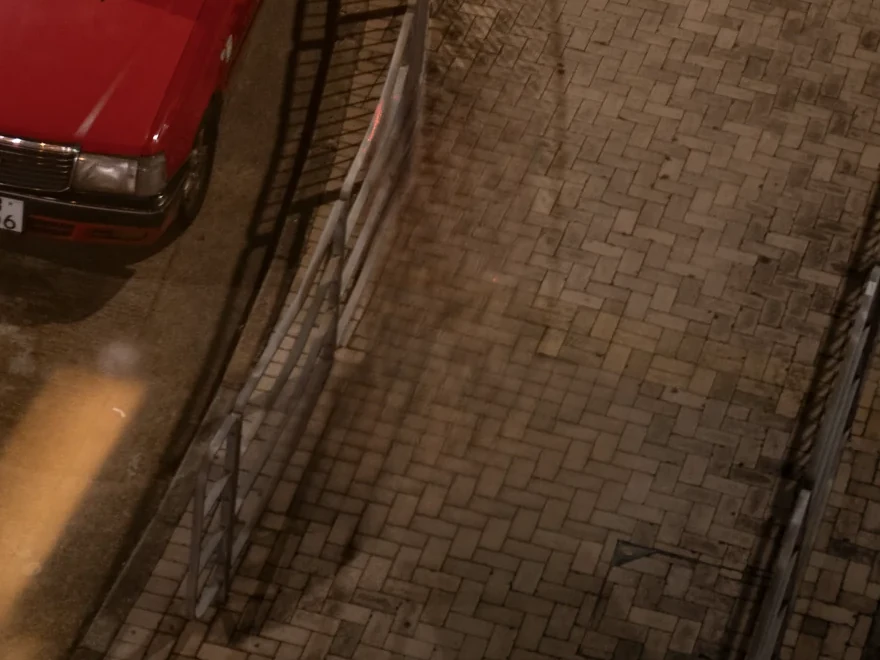
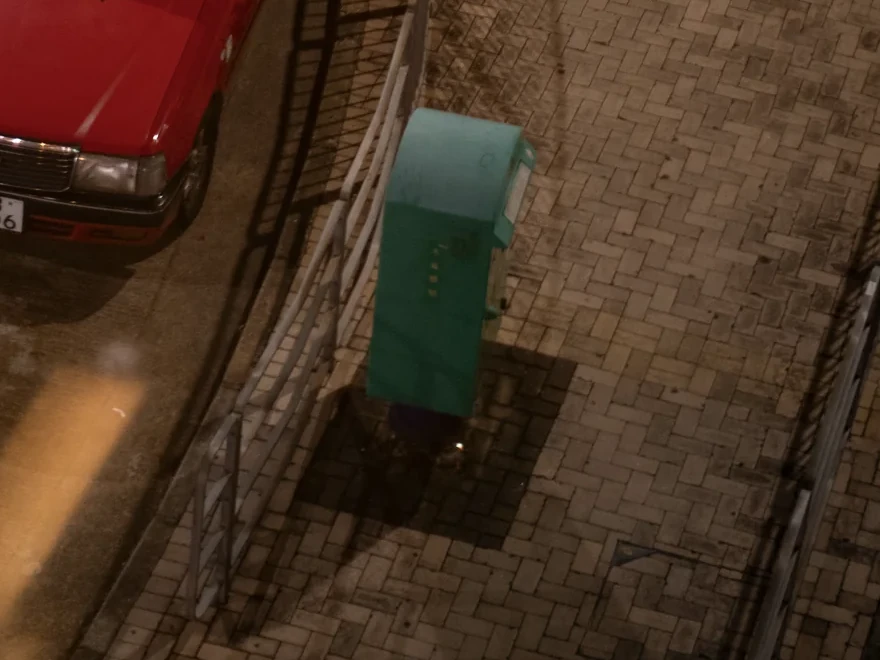


Runs on your Mac for free
Many removal tools send your photo to a server, or charge credits each time. Lucarne’s AI removal runs on your Mac. Your photo stays on your computer, and you can remove as much as you like.
Change your mind any time
Each removal is a step in your edit: change it or delete it. It’s recorded in your edit, not written into the original file.
Other removal tools
| Tool | Runs | Price |
|---|---|---|
| Lightroom Generative Remove | Online | Subscription |
| Photoshop Generative Fill | Online | Subscription, uses generative credits |
| Clean Up in Apple Photos | On device | Built in, needs Apple Intelligence |
| Google Photos Magic Eraser | Mostly online | Free |
| Lucarne | On your Mac | Free |
Questions
- Is Lucarne's AI removal free?
- Yes, as often as you like.
- Does it need the internet?
- Only to download the AI model the first time. After that, everything happens on your Mac.
- Does it work on RAW photos?
- Yes. RAW, JPEG, and other common formats all work.