
Let your AI assistant edit your photos
AI assistants can now edit photos for real. All it takes is a photo editor with a built-in MCP server (MCP is an open standard that lets AI assistants use apps). Lucarne is a free photo editor for the Mac with one built in. Once connected, your assistant can make any edit you can make in Lucarne — light, colour, masks, retouching, looks — and handle the chores too: sorting a shoot, applying a look, exporting.
This one is grey and dark. Brighten it and give it more colour, remove the passer-by in the bottom left, and lift the woman by the wall a little.
- Whole photo: exposure +1.9 EV, contrast +30
- Whole photo: vibrance +40, saturation +10
- Brush over the passer-by in the bottom left
- Remove: AI fills in the street behind him
- Add a radial gradient around the woman by the wall
- Woman: exposure +0.8 EV, shadows +20
- Render a preview and check: no clipped highlights, natural wall colour
Done. The photo is brighter and more colourful, the passer-by is gone, and the woman by the wall is a little brighter. You can keep refining every step in Lucarne.
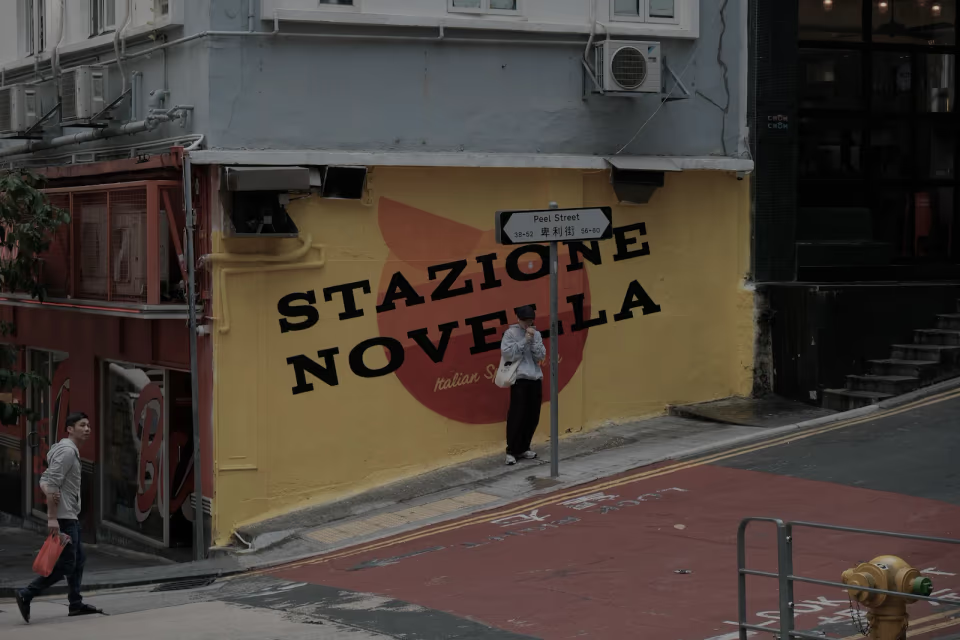
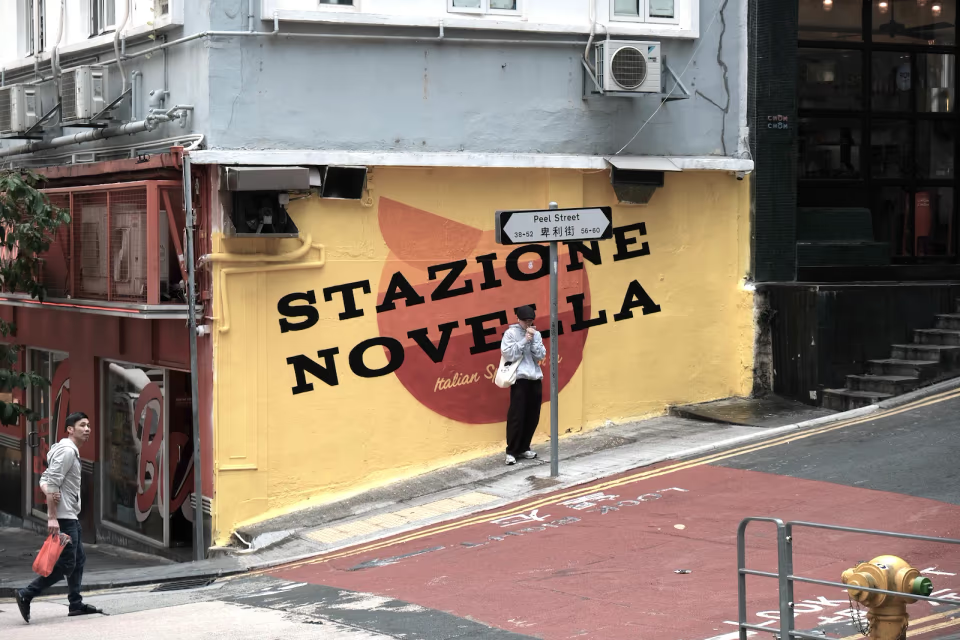
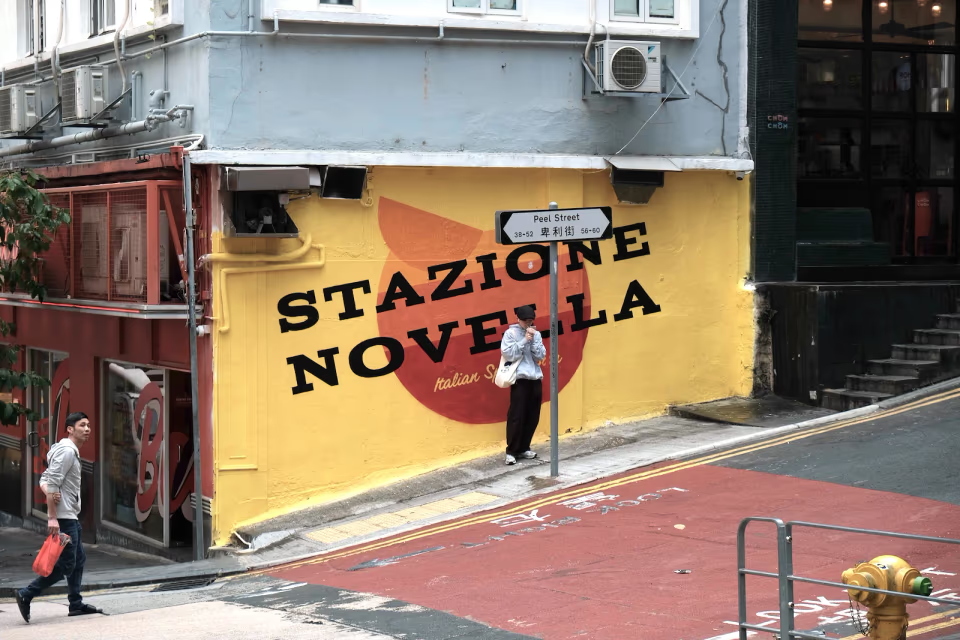
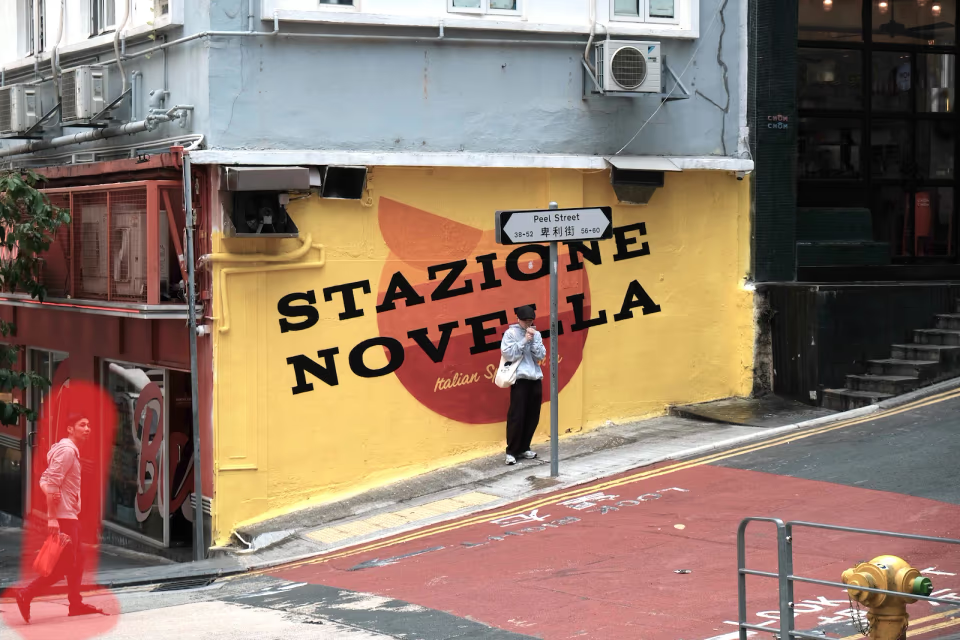
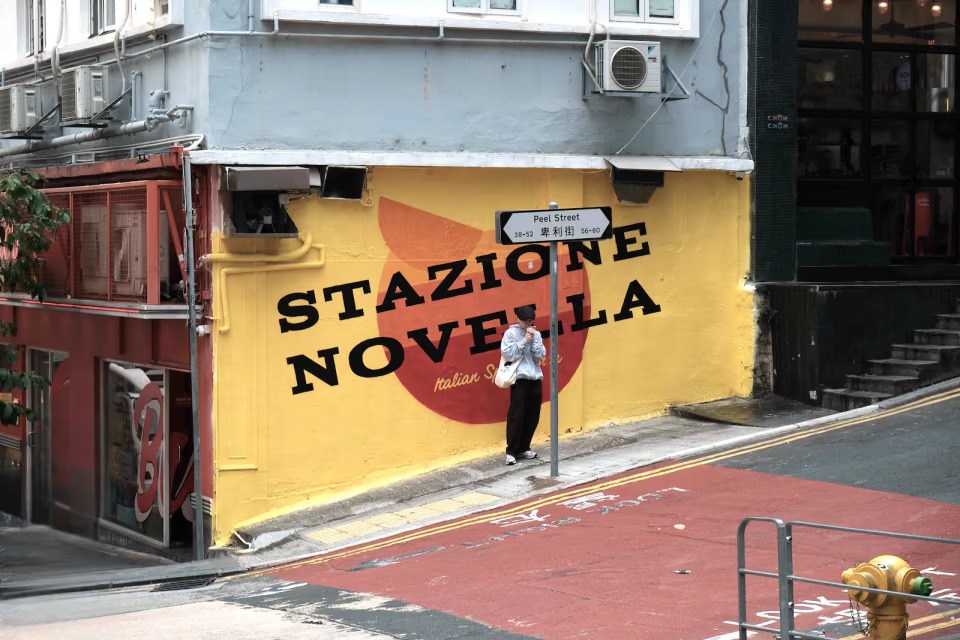
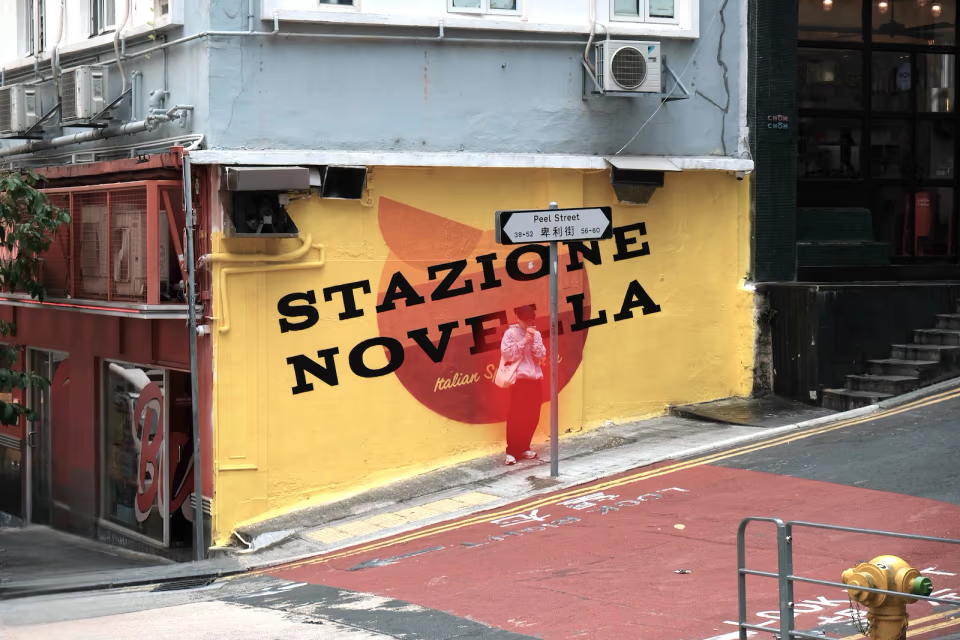
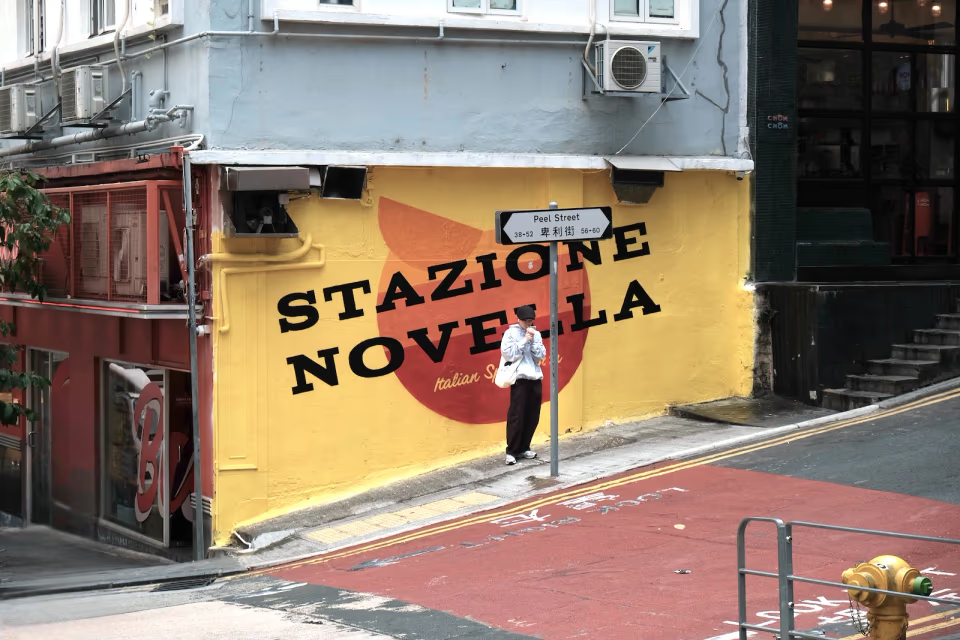
The assistant checks its own work as it edits
Tell the assistant what you want, and it gets to work: it makes a change, renders a preview, checks the result (the tones, any clipped highlights) and decides what to do next. It repeats this until the edit is done.
The assistant can use everything Lucarne can do:
- Light and colour: exposure, white balance, tone, curves, HSL, colour grading, dehaze
- Local adjustments: AI selections of the subject, people, sky, and ground; gradients; colour and luminance ranges
- Retouching: heal, clone, and AI removal
- Looks: film simulation, LUTs, grain, vignette, and your saved Looks
Precise adjustments built on colour science
Generative AI can “edit” a photo too, but it does so by painting a new one. Ask twice and you get two different pictures, and things in the photo can quietly change.
In Lucarne, your assistant sets the controls of a professional editing pipeline. Every pixel is computed exactly, in a colour-managed process. The same settings give the same result. Nothing in the photo is invented or lost. And the edit stays open afterwards: you can adjust any step it made.
A repainted picture
- A different result every time
- What’s in the photo can change
- Hard to fine-tune afterwards
Edited in Lucarne
- Exact and repeatable
- Still the photo you took
- Every step stays adjustable
The assistant understands every control
Every adjustment in Lucarne comes with a description: what it does, its range, and its unit, in the terms photographers use — stops of exposure, kelvin for temperature. So when an assistant decides to brighten by half a stop, the result is half a stop. When it wants the snow white again, it knows which control to use.
Exposure
Brighten or darken the whole photo, in stops.
White balance
Temperature and tint, so white looks white.
Sky mask
AI finds the sky, so only the sky changes.
Film simulation
Pick a film and a paper, then set the amount.
Routine work as well
One sentence can hand over a whole job:
Go through yesterday’s shoot. Reject the blurry ones, pick the best five, give them a warm film look, and export them for Instagram.
- Go through a shoot: rate, pick, reject, tag
- Apply one look to all the picks
- Export at the size and format you need, with a frame or a watermark
Every change shows in Lucarne as it happens
You can watch the assistant work. Each change goes into the photo’s history as a step of its own, and you can step back through them just like your own.
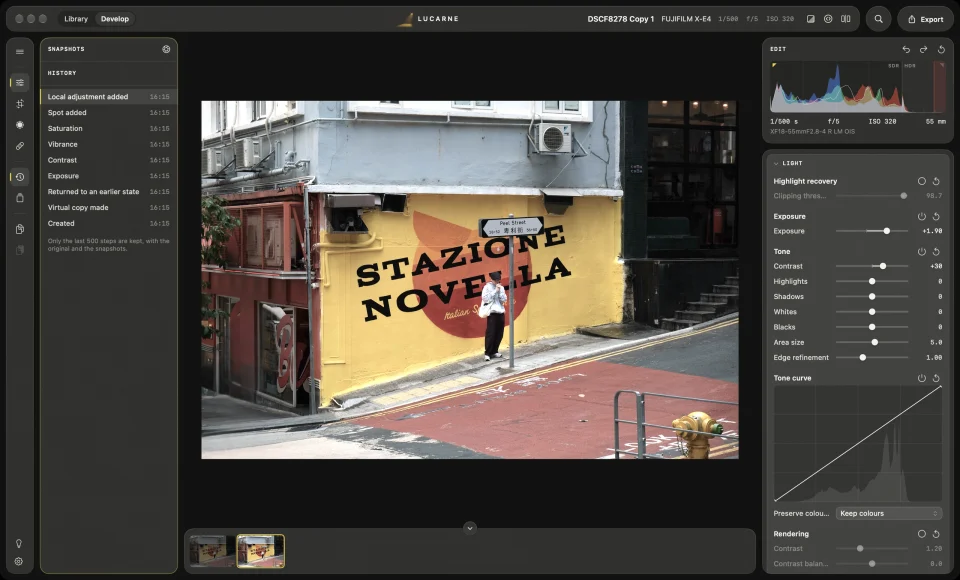
You decide what it may do:
- Edit photos, or only look at them
- Export only to the folder you choose — or not at all
- Assistants can’t remove photos from your library
Connect in three steps
- Open Lucarne, then open Settings and choose Connect Your AI Agent.
- Turn Let agents edit photos on or off, and choose the Folder agents may export to.
- Copy the message shown there and send it to your assistant. It sets up the connection itself, or tells you where to add it.
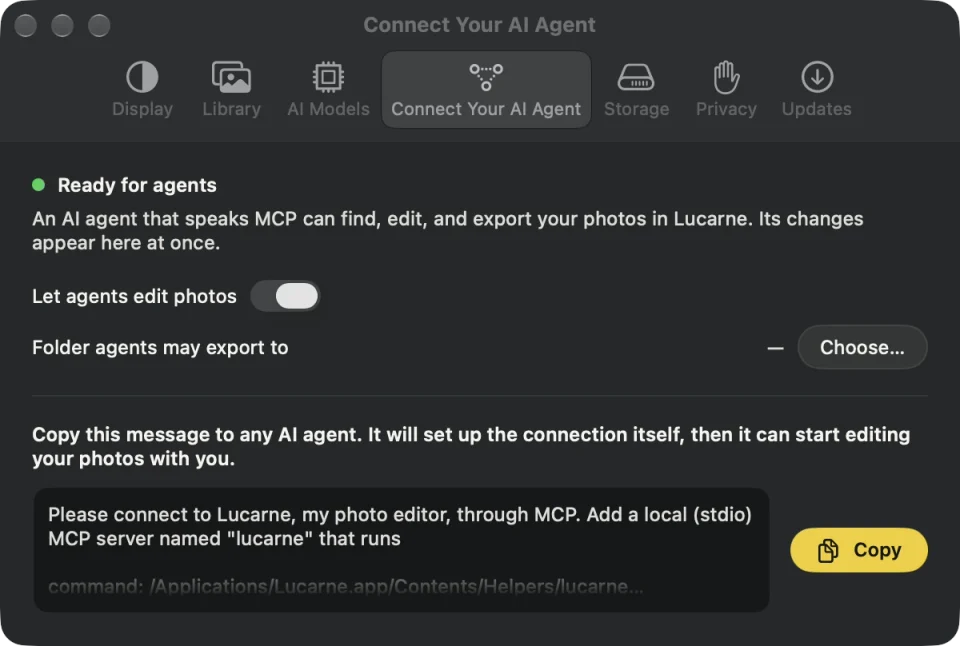
Any assistant that can run a local MCP server works — for example Claude Desktop, Cursor, or Codex in the ChatGPT desktop app. With LM Studio running a model on your Mac, the whole thing works offline.
Other ways to let AI edit photos
| Option | Runs | Works on | Setup |
|---|---|---|---|
| Adobe’s connectors in ChatGPT, Claude, and Gemini | Online | Images you give it, or files in Adobe’s cloud | Add it in your assistant; an Adobe account unlocks more |
| Community MCP add-ons for Lightroom Classic, darktable, Capture One | Locally | Photos in that app | Install an unofficial add-on |
| Luminar Neo’s built-in assistant | Online | Photos in Luminar | Inside the app |
| Lucarne | On your Mac | Photos in your library, left where they are | Built in, three steps, free |
What sets Lucarne apart: the MCP server is built in, so there’s nothing extra to install. It works in your own library on your Mac, covers everything from culling to export, and it’s free.
Questions
- Is Lucarne free?
- Yes. Every feature, including working with AI assistants, is free to use.
- Are my photos uploaded?
- Lucarne doesn't upload your photos. If you use an assistant that runs in the cloud, what it reads — such as previews — is handled under its provider's terms. To keep everything local, use a local model.
- Which assistants work?
- Any assistant that can run a local MCP server, such as Claude Desktop, Cursor, and LM Studio.
- Can I undo what the assistant did?
- Yes. Each of the assistant's changes is recorded in the photo's history, and you can step back in Lucarne at any time.
- Does it work offline?
- Yes. With a model running on your Mac, for example in LM Studio, everything stays on your Mac.
Lucarne lets you connect AI assistants provided by others. It doesn’t control those assistants, their providers, or what they do, and you are responsible for the assistants you connect and the permissions you give them. Keep backups of your photos. See the disclaimer.