
How to straighten buildings in your photos
When you tilt the camera up, buildings lean back and their vertical lines converge toward the top. That’s perspective, and it’s easy to correct: fix the lens distortion, correct the vertical perspective, then level and crop. In Lucarne, a free photo editor for the Mac, each step is a slider or two.
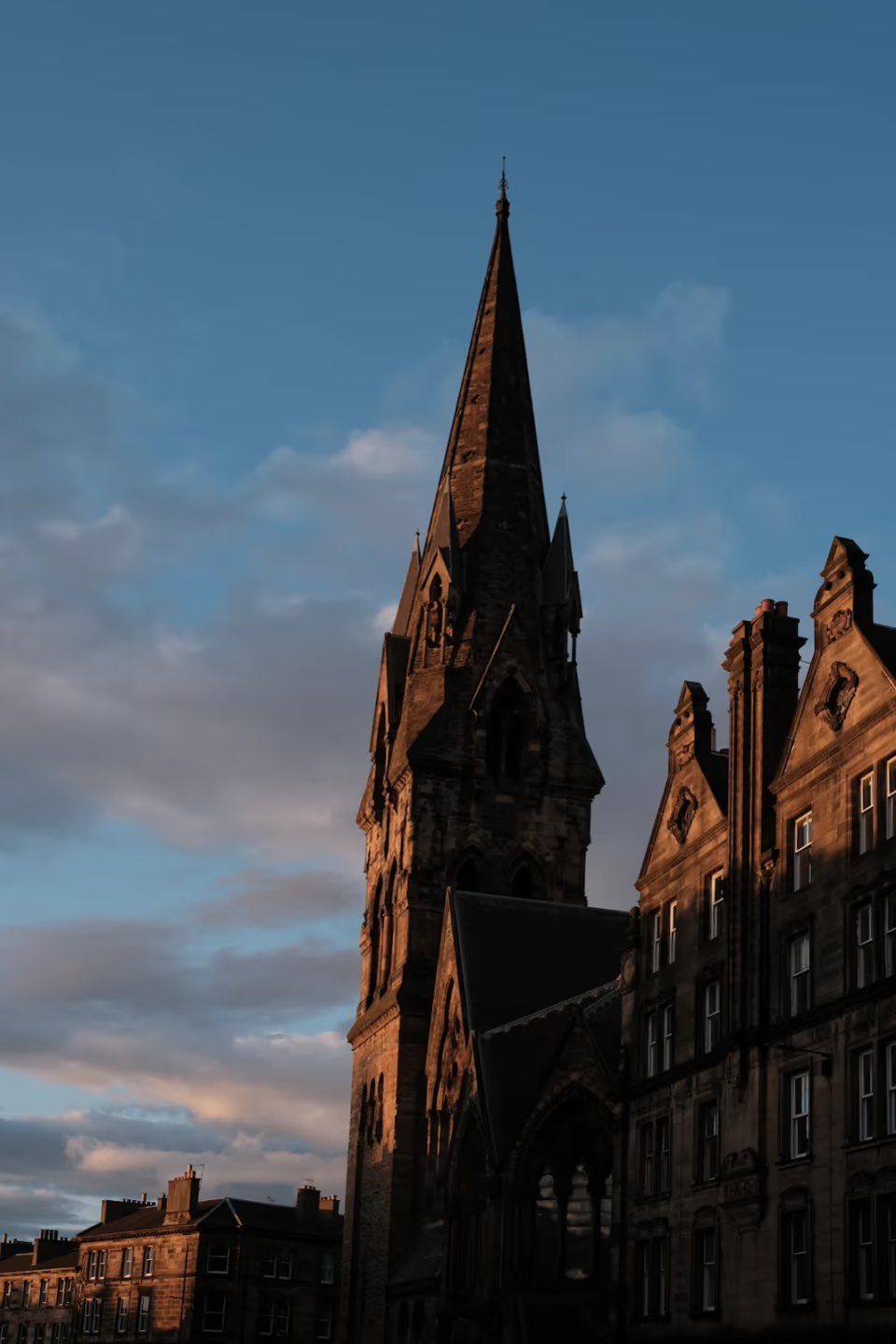
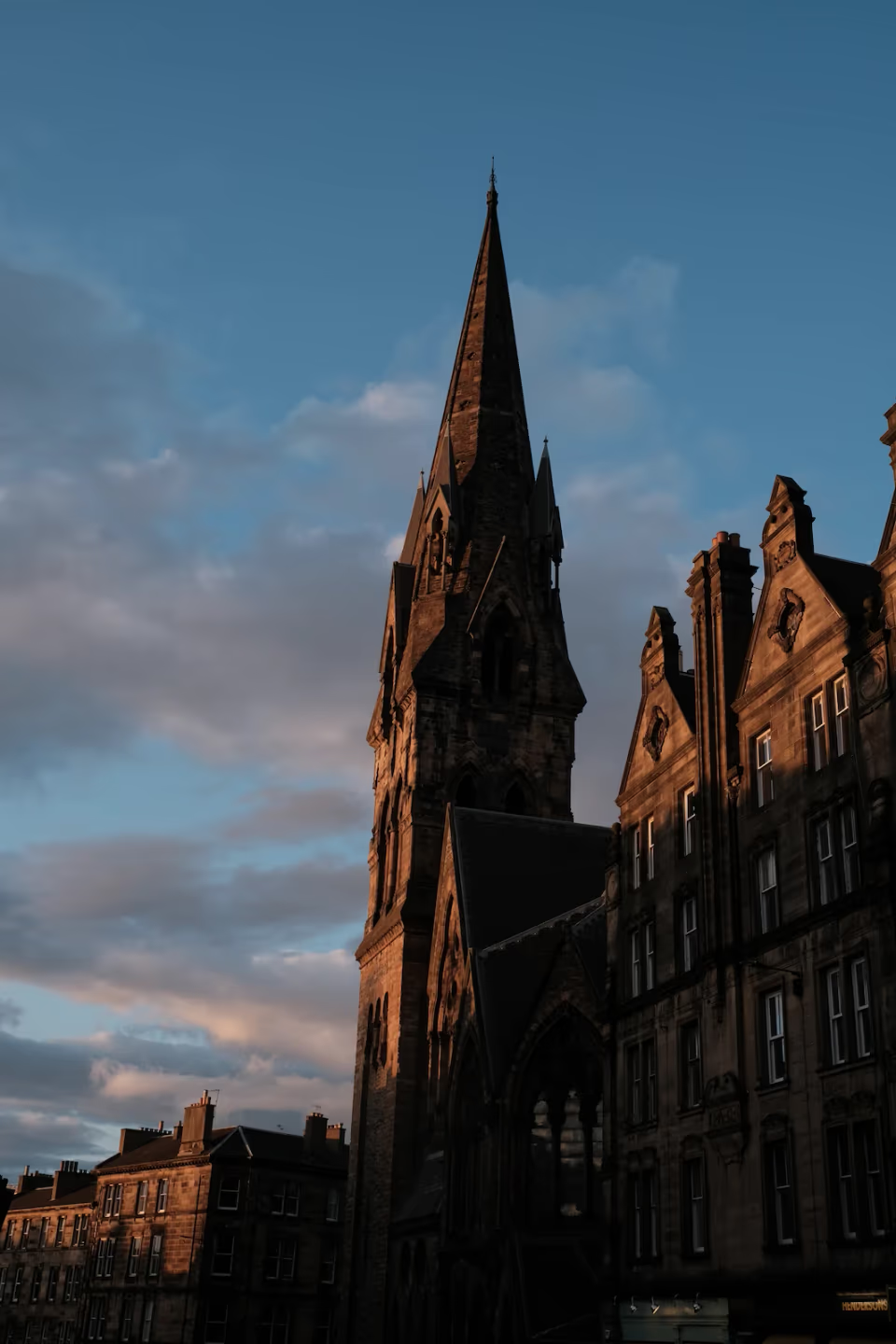
BeforeAfter
Why buildings lean
When the camera points upward, the sensor is no longer parallel to the wall. The top of the building, further away, looks smaller than the bottom, so lines that are parallel in reality converge toward the top, and the building becomes a trapezoid. Pull the trapezoid back into a rectangle, and the building stands straight.
Straighten a building step by step
- Correct the lens first. Wide-angle distortion bends straight lines. Turn on the camera’s own lens corrections, or adjust Distortion by hand.
- Level it. In Crop and rotate, adjust the Angle until the horizon or the base of the building is level.
- Correct the vertical perspective. In Perspective, drag Vertical until the verticals are parallel.
- Correct the horizontal perspective if needed. If you shot the wall at an angle, drag Horizontal too.
- Restore the proportions. If the building now looks stretched or squashed, use Aspect to bring it back.
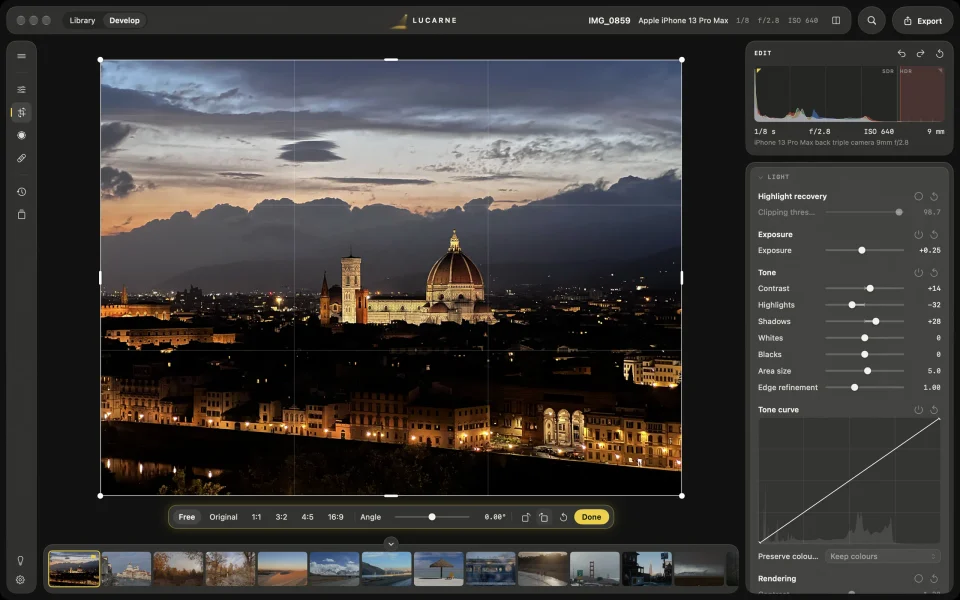
- Crop. Correction leaves empty edges; crop them away, with a ratio if you like.
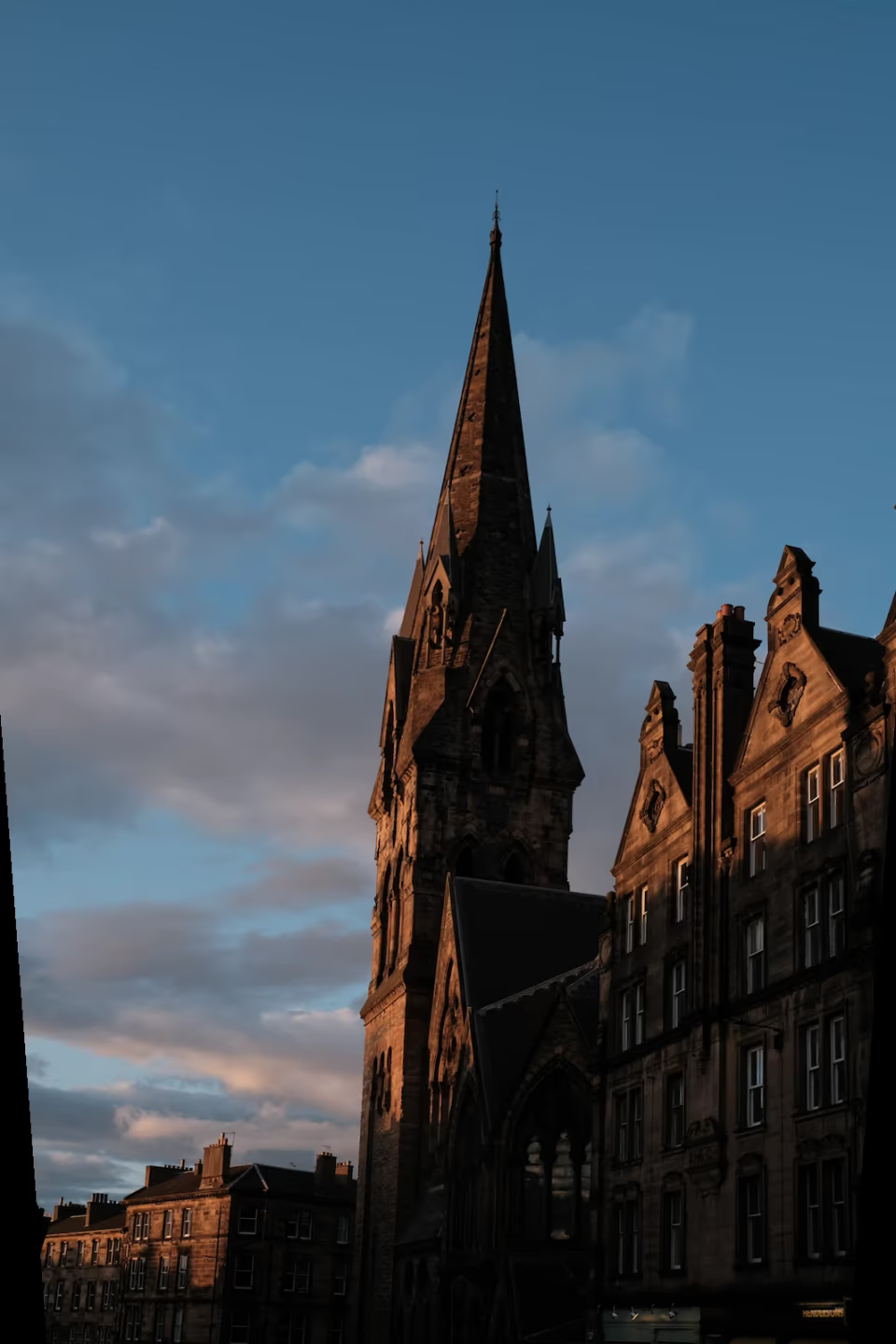 Step 3: vertical perspective
 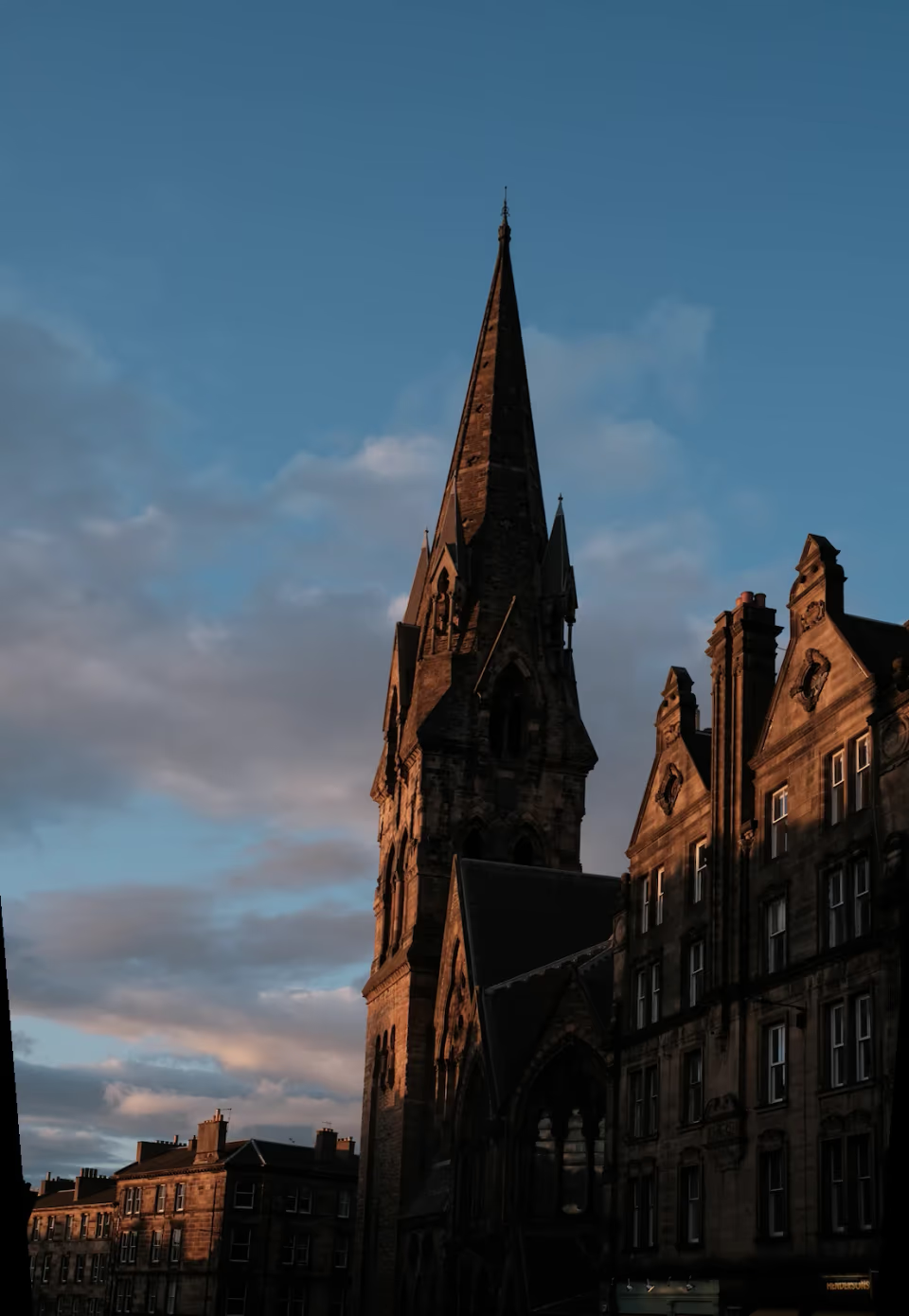 Step 5: aspect Step 6: cropped
 A few tips
- Leave room when you shoot. Correction crops away part of the frame, so give the building some space around it.
- It doesn’t have to be perfectly parallel. For a very tall building shot steeply upward, a little convergence often looks more natural.
- Use the guides. The crop shows the rule of thirds; line the verticals up against it.
Questions
- Is perspective correction free?
- Yes. All of Lucarne's editing is free to use.
- Will it crop my photo?
- Yes. Correction leaves empty edges that need to be cropped, which is why it helps to leave room when you shoot.
- Can I change it later?
- Yes. Editing in Lucarne is non-destructive: your edit is kept apart from the original file, and you can change or undo the correction any time.